Inside EqualDocs: From Sign-Up to Signed Contract, Step by Step

Meta description
A real walkthrough of the EqualDocs platform — creating a Matter, tracking its pipeline from lead to paid, and messaging your lawyer directly, with actual product screenshots.
Most legal-tech product pages tell you what a platform can do. This post shows what it actually looks like to use one — from the moment you land on the homepage to the moment you’re messaging your lawyer about a real matter.
1. Landing on the site and picking your language
EqualDocs opens with a straightforward pitch: an AI-native law firm, with licensed lawyers amplified by AI — not an AI tool pretending to be a law firm. The homepage is available in English, French, and Chinese; the language switcher sits in the top right next to Sign In / Sign Up.
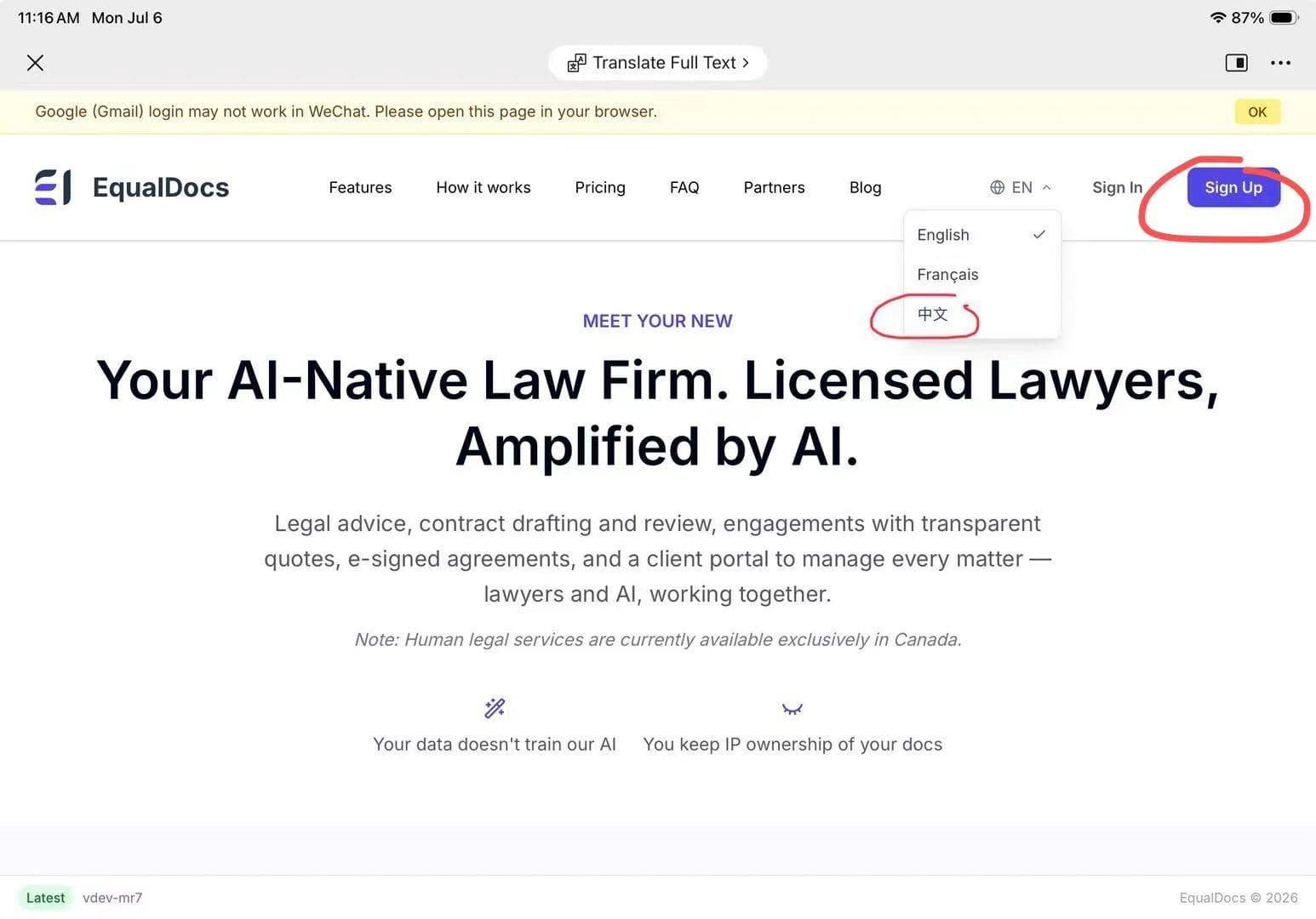
One practical note if you’re opening EqualDocs from a link inside WeChat: the in-app browser can block Google login. A banner at the top flags this automatically and suggests opening the page in your default browser instead — a small detail, but one that saves a confusing dead-end for anyone coming from a WeChat share.
2. Signing up
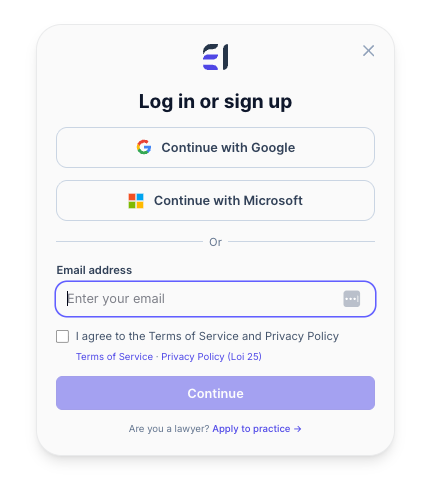
Clicking Sign Up opens a simple modal: one-click continue with Google or Microsoft, or a plain email signup with a Terms of Service / Privacy Policy checkbox. If you’re a lawyer rather than a client, there’s a separate “Apply to practice” link at the bottom — the platform is built for both sides from day one, not retrofitted.
3. Finding your way around: the sidebar
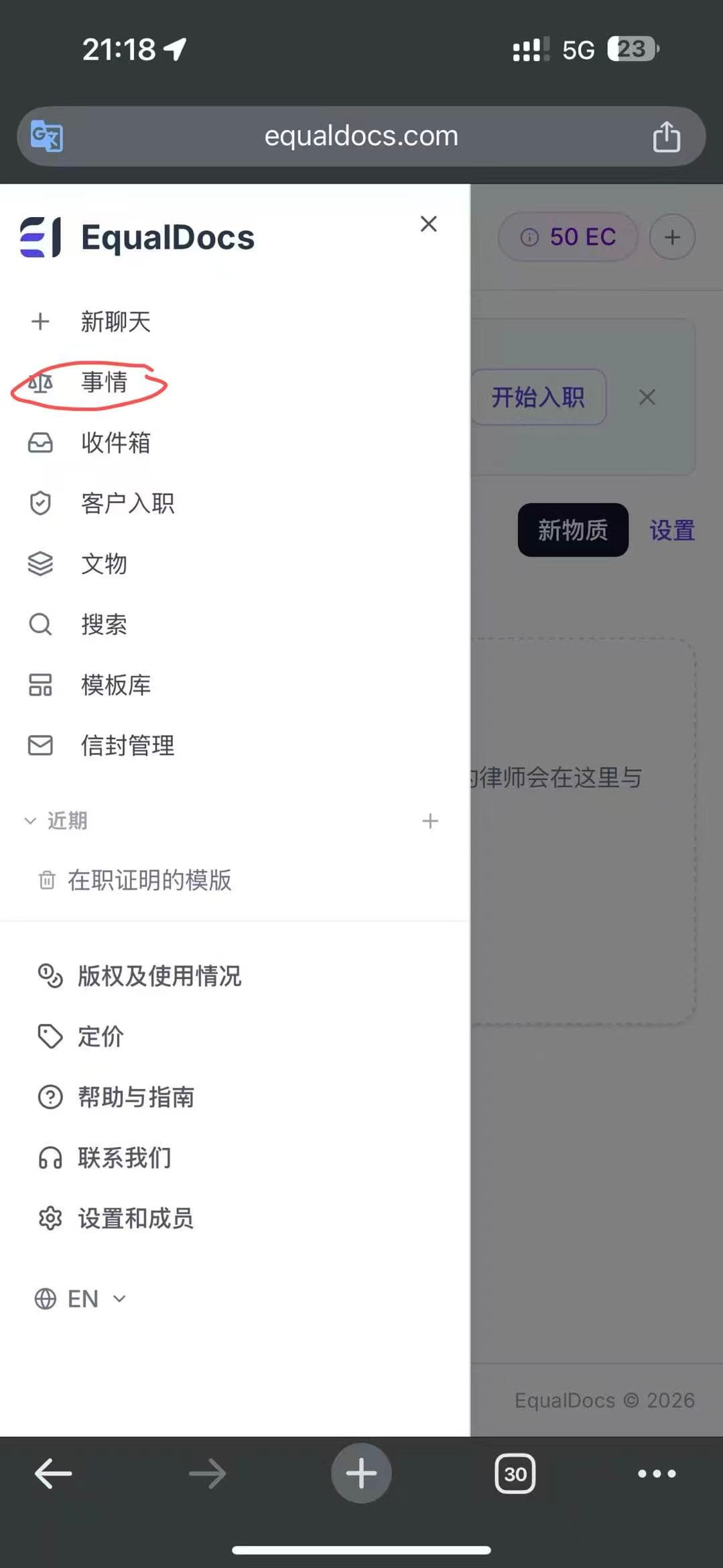
Once you’re in, the sidebar is the actual control center. It’s organized around a handful of core actions rather than a sprawling menu:
| Menu item | What it does |
|---|---|
| New Chat | Start a new AI conversation (legal questions, drafting help) |
| Matters | View and manage all your matters (cases) — this is where most of your actual work happens |
| Inbox | System notifications and messages |
| Client Onboarding | New client intake flow |
| Artifacts | Your library of uploaded/generated documents |
| Search | Global search across the platform |
| Template Library | Common contract and document templates |
| Envelope Management | E-signature envelope management |
| Pricing | Your Equal Credits (EC) balance and plans |
4. Creating your first Matter
“Matters” is where you go to start something real. The page is refreshingly low-friction: a single text box asking what you need help with — “Unpaid wages, lease dispute, immigration question…” — and a Create Draft button.
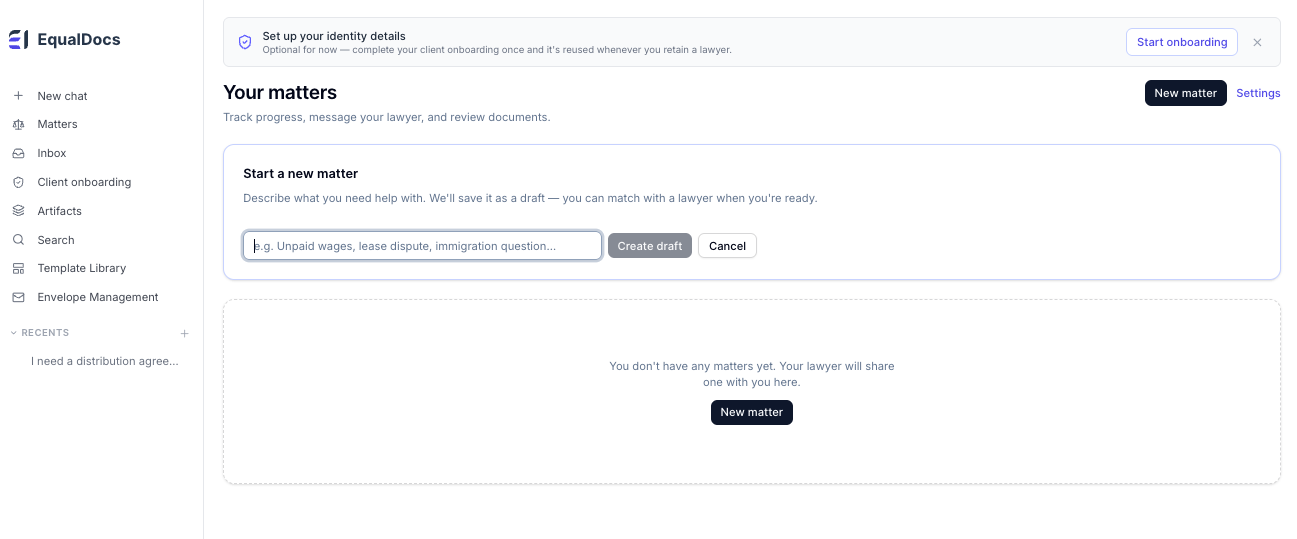
You don’t need to fill out a full intake form to get started. Describe the situation in plain language, save it as a draft, and you can match with a lawyer whenever you’re actually ready to move forward. If you’d rather get your identity/onboarding details out of the way early, there’s an optional “Start onboarding” prompt at the top — useful later once you formally retain a lawyer, but not required just to open a matter.
5. Inside a Matter: tracking real progress, not a black box
Once a matter is underway, its detail page shows exactly where things stand — no guessing whether an email got read or a payment got processed.
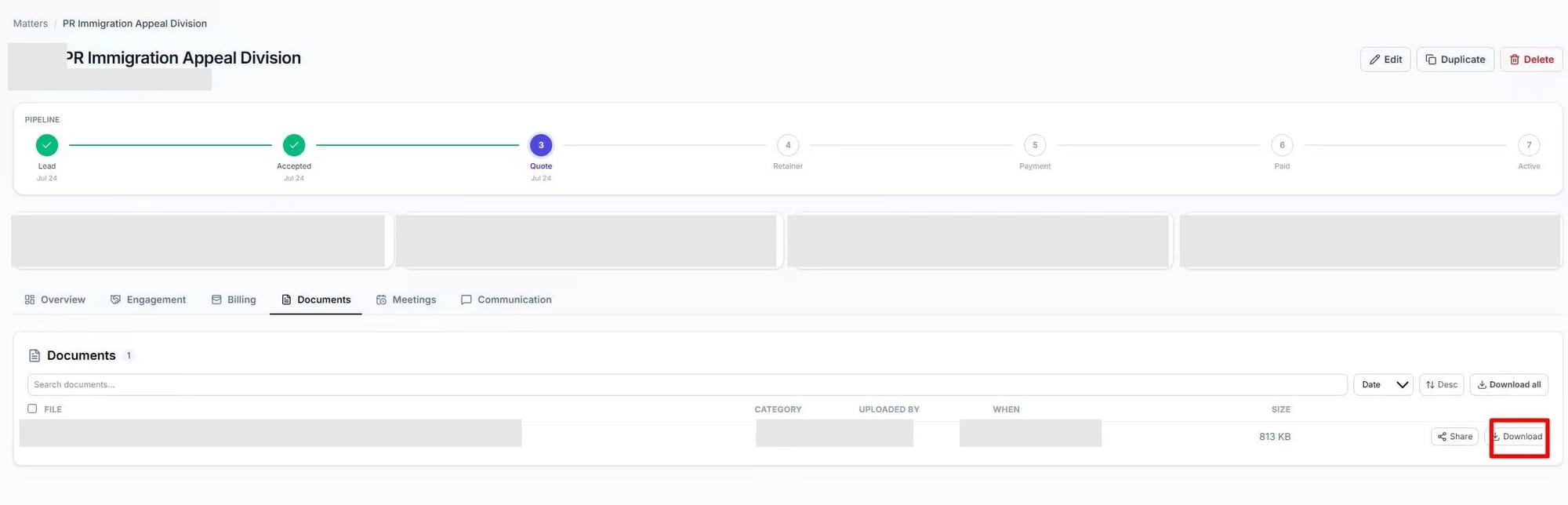
The pipeline bar across the top tracks the matter through seven concrete stages: Lead → Accepted → Quote → Retainer → Payment → Paid → Active. Below that, a running summary shows the quoted amount, outstanding balance, amount collected, and any trust funds held — the kind of financial clarity that’s normally buried in a separate invoice thread, surfaced right where you’re already looking.
Tabs across the middle let you move between Overview, Engagement (the retainer agreement itself), Billing, Documents (every uploaded or signed file, downloadable), Meetings, and Communication.
6. Talking to your lawyer, without losing the paper trail
The Communication tab is where the actual back-and-forth happens, and it’s split by audience on purpose:
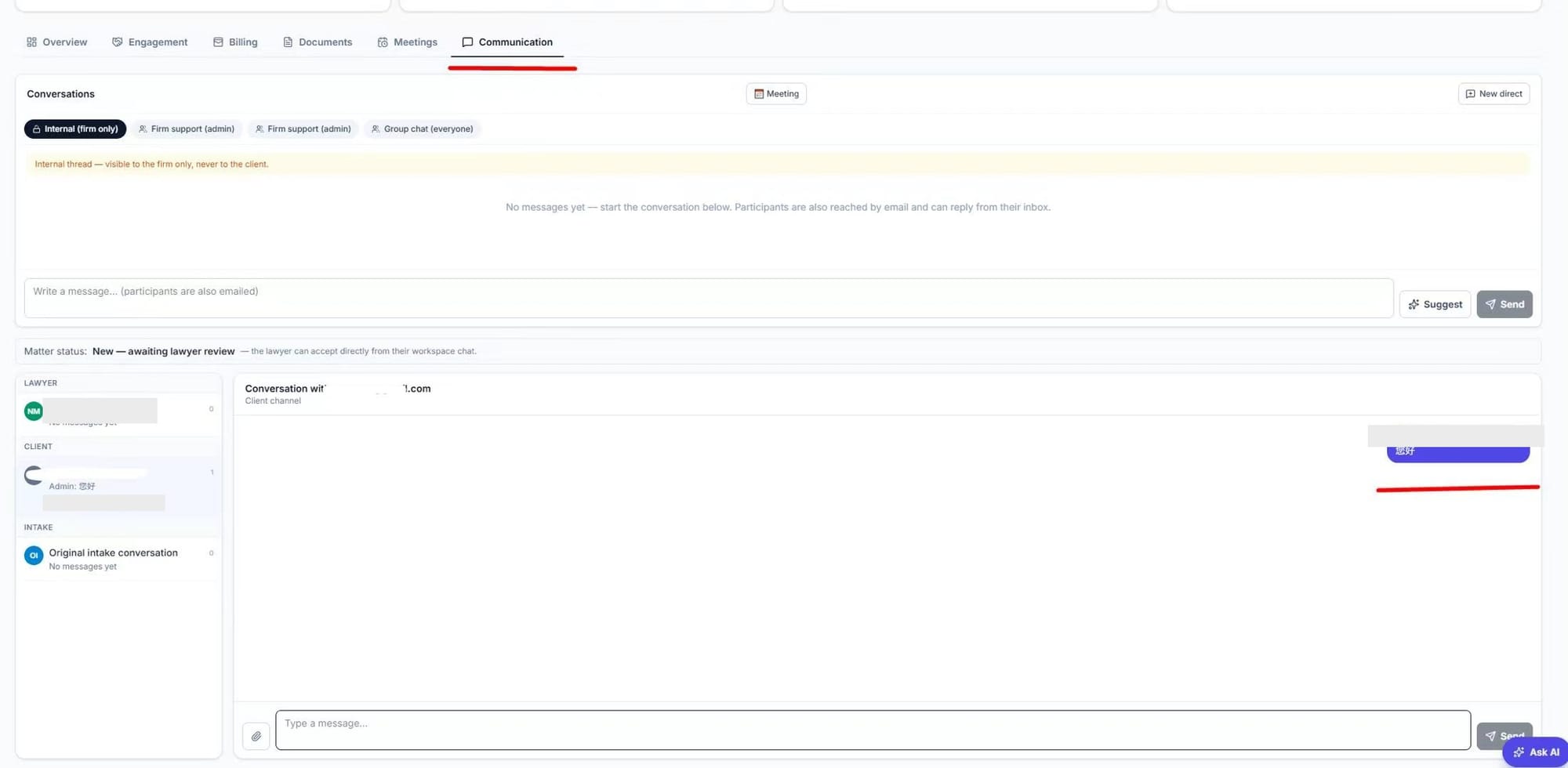
- Internal (firm only) — visible only inside the law firm, never shown to the client. Useful for a lawyer coordinating with colleagues on a matter without that conversation leaking into the client-facing thread.
- Firm support (admin) and Group chat (everyone) — for messages meant to include the client.
The left-hand panel keeps three separate threads clearly labeled — Lawyer, Client, and the original Intake conversation — so nothing gets tangled together. Every message sent through the platform also goes out by email, so participants aren’t required to be logged in to stay in the loop. A status line at the top (“New — awaiting lawyer review”) tells the lawyer exactly what action is expected next, and an Ask AI button in the corner means help is available on the current matter without switching context.
The path, start to finish
- Open the site, switch language if needed, sign up (email or one-click Google/Microsoft)
- From the sidebar, open Matters and click New matter
- Open the specific matter to track its pipeline stage, amounts, and documents
- Use Communication to message your lawyer directly and get real-time updates
That’s the whole loop — no separate portal to check, no email thread to lose track of. If you have any other questions along the way, “Contact Us” is available inside the workspace, and Ask AI is one click away in the corner of every matter.